 Web DevelopmentWordPress VIP or Self Hosted Enterprise WordPress in the UAEWordPress VIP or self hosted enterprise WordPress in the UAE: compare data residency, hosting SLA, cost drivers and code review rules, plus key setup notes.
Reading a GTmetrix Report Without Getting Lost
How to read a GTmetrix report: the grade, Web Vitals, waterfall chart and each tab explained, plus why test location and field data matter for UAE visitors.

A GTmetrix report tells you how one test load of a page performed, from one location, on one simulated device. Read it top down: check the test settings first, then the Web Vitals, then the waterfall chart to find the cause. The grade is a useful summary, but the numbers underneath are what tell you what to fix.
What a GTmetrix report is measuring today
GTmetrix now runs Google Lighthouse inside its own test browser, so the report reflects Lighthouse metrics captured under GTmetrix's hardware, connection and location settings. Older guides that describe YSlow or PageSpeed rule scores refer to a previous version of the tool and no longer match what you see.
Every report is lab data: a single, controlled page load. That makes it excellent for debugging and before and after comparisons, but not a record of what real visitors experience.
Check the test settings before reading any number
Just under the page URL, the report lists the test location, browser and connection used. These settings affect every figure. Before comparing two reports, confirm they used the same location, device and connection, otherwise the comparison means little.
The GTmetrix grade and its two scores
The headline GTmetrix grade, shown as a letter, blends two scores:
- Performance score: essentially the Lighthouse performance score, captured with GTmetrix's test browser and settings. This is the same family of numbers as Lighthouse scores in Chrome DevTools or PageSpeed Insights, though values differ because hardware and location differ.
- Structure score: GTmetrix's own assessment of how well the page is built, based on Lighthouse audits such as image sizing, caching and unused code.
A high grade with a poor LCP still means a slow first impression. Treat the grade as a health indicator and the metrics as the working information.
Web Vitals: the three numbers to read first
Beside the grade, the report shows three Web Vitals:
| Metric | What it shows | Good target |
|---|---|---|
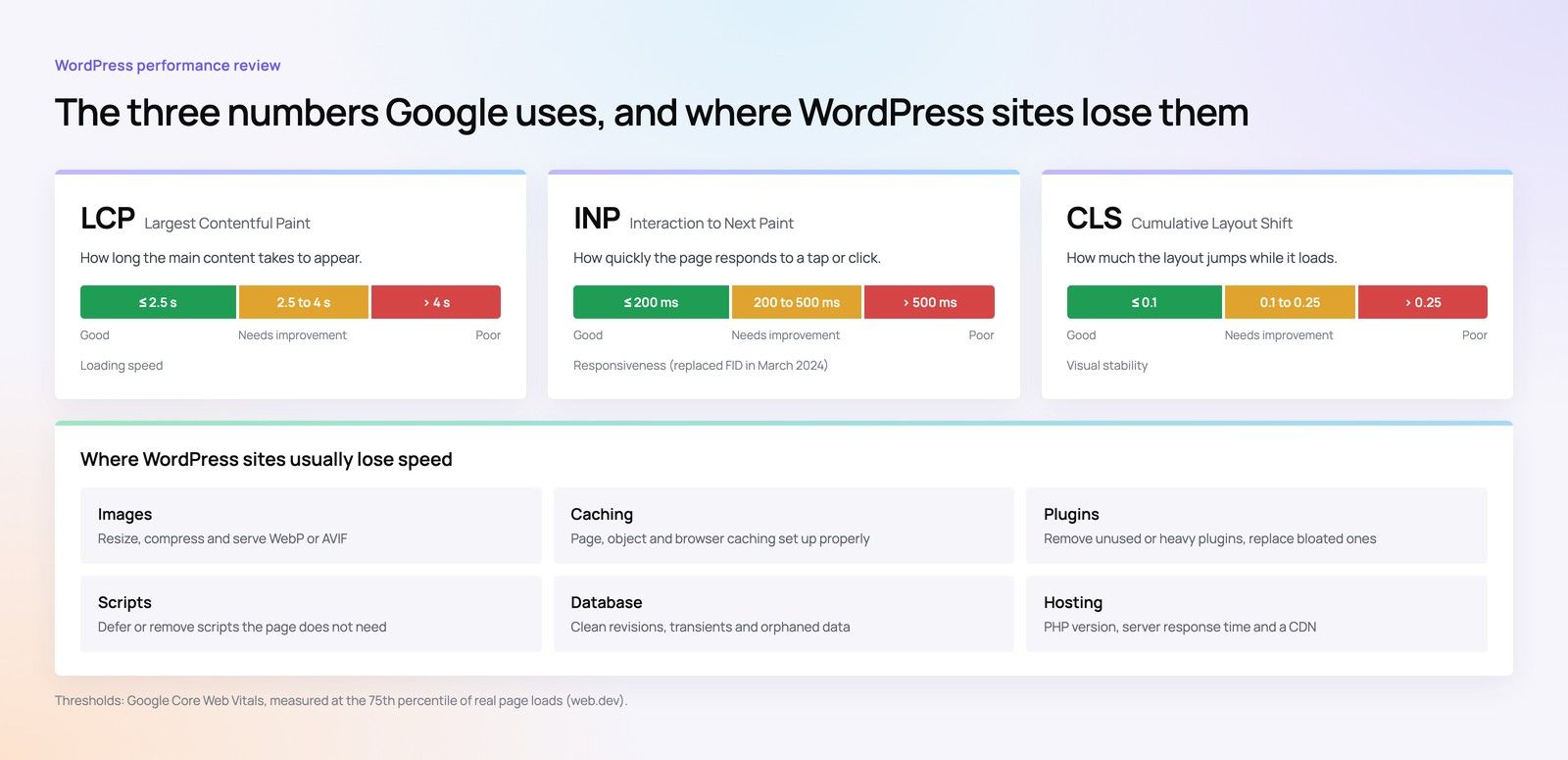
| Largest Contentful Paint (LCP) | When the main content, often a hero image or heading, appears | 2.5 seconds or less |
| Total Blocking Time (TBT) | How long the main thread was blocked by long tasks after content first appeared | Under 200 milliseconds |
| Cumulative Layout Shift (CLS) | How much the layout moves while loading | 0.1 or less |
TBT appears instead of Interaction to Next Paint because INP needs real user interactions, which a lab test cannot produce. Google describes TBT as a lab proxy for INP: a high TBT usually signals responsiveness problems, but it can miss issues that only appear when someone taps a filter or opens a menu.
Report tabs, section by section
Summary
The summary combines a speed visualisation, a list of top issues ranked by impact, and page details that break down requests and page size by type. The speed visualisation is the fastest way to explain a slow page to a non technical colleague: it shows when the first content, the main content and the fully loaded state happened.
Performance
This tab lists the Lighthouse metrics in full, including First Contentful Paint and Speed Index, alongside timings the browser reports, such as the time to first byte. If TTFB is high, the server or caching is the first thing to investigate, before any front end work.
Structure
Structure lists audits with their impact on the page, with lower impact items hidden by default. Work from the top. An audit flagged as high impact on your LCP element is worth far more than ten low impact suggestions about minor scripts.
Waterfall chart
The waterfall chart shows every request in the order the browser made it, with bars for each phase of the download. It is where you find the cause behind the numbers:
- A long first bar points to a slow server response.
- Many requests to third party domains before the main image suggest scripts competing for bandwidth.
- A large image near the top, loading late, is often the LCP element waiting behind CSS or fonts.
Video and History
When video capture is enabled, the Video tab records the load so you can step through it slowly and see layout shifts as they happen. History tracks scores and metrics for the same URL over time, which is useful for spotting when a release or new tag made things worse.
Why test location changes the result for UAE visitors
Every request travels between the test server and your hosting. If your audience is in the UAE but the test runs from North America, network distance inflates TTFB and every resource time. The report then exaggerates some problems and hides others.
GTmetrix lists Dubai among its test locations. Where your plan allows, choose it for pages aimed at UAE and Gulf visitors, and keep using the same location for every comparison. If your site also serves Europe or South Asia, run separate tests from a nearby location for those markets rather than averaging them.
Hypothetical example: a Dubai clinic's booking page tests poorly from a distant location, with high TTFB. Retesting from Dubai shows that TTFB is acceptable for local visitors, and the real issue is a large hero image loading late behind a booking widget script. The fix list changes completely once the location matches the audience.
Lab results versus field data
Lab tools such as GTmetrix and Lighthouse describe one load. Field data from the Chrome User Experience Report, shown in PageSpeed Insights and Search Console, reflects real Chrome users over the previous 28 days. The two often disagree, and both can be correct.
- If lab results are poor but field data is good, your visitors may have faster devices or connections than the test assumes.
- If lab results are good but field data is poor, look at interaction issues (INP), slow pages behind logins, or content that varies by visitor.
Use GTmetrix to debug and confirm fixes, and field data to decide whether the problem is real for your audience. Our fix order for slow websites shows what to tackle first once you know where the bottleneck is.
Where GTmetrix fits among page speed test tools
A practical set for most teams:
- PageSpeed Insights for field data and a quick Lighthouse run.
- GTmetrix for a readable waterfall, video and history from a chosen location.
- Chrome DevTools for tracing long tasks and interaction problems.
- Search Console for Core Web Vitals across groups of URLs.
Our overview of the web design tool stack covers where testing fits in a wider project, and the guide to interactive features without lag explains how heavy elements show up in these reports.
Turn a confusing report into a clear plan
Codeeo's developers read speed reports alongside field data, identify the real bottleneck on each key template, and fix it on WordPress, Shopify and custom builds. With an office in Dubai, UAE clients can review findings with the team in person.
Book a speed optimisation quick start, read about our Core Web Vitals service, or contact the team with the GTmetrix report you want explained.
Frequently asked questions
Small variations in server load, network conditions and third party scripts change timings from run to run.
Ads, chat widgets and analytics tags are especially variable because they load from other servers. Run three tests in a row from the same location and settings, then compare the middle result, rather than reacting to one unusually good or bad run.
Web DevelopmentWordPress VIP or Self Hosted Enterprise WordPress in the UAEWordPress VIP or self hosted enterprise WordPress in the UAE: compare data residency, hosting SLA, cost drivers and code review rules, plus key setup notes. Web DevelopmentWhat a WordPress Maintenance SLA Should CoverWhat WordPress maintenance services should cover in writing: core and plugin updates, security, backups, multilingual publishing support and response times.
 Web DevelopmentWordPress Release Management: Staging, QA and RollbackA WordPress deployment workflow that releases safely: Git based builds, a staging site that mirrors live, smoke tests to run and a rollback plan written first.
Tell us what the business needs. We will tell you what to build first.
Schedule a free consultation and get a written recommendation, with costs, before you commit to anything.
Get in touchPROVEN RESULTS
4.7 / 5verified reviews on Google