 Web DevelopmentWordPress VIP or Self Hosted Enterprise WordPress in the UAEWordPress VIP or self hosted enterprise WordPress in the UAE: compare data residency, hosting SLA, cost drivers and code review rules, plus key setup notes.
Speeding Up a Slow Website: A Fix Order That Works
How to improve website speed on a live site: a platform neutral fix order ranked by effort and impact, from caching and the LCP image to scripts and layout.

If you want to know how to improve website speed on a site that is already live, the answer is to fix things in order of impact and effort, not in the order a testing tool lists them. Start by measuring what real visitors experience, then fix the server response, the main image, heavy scripts and layout shifts, in that sequence. Most slow sites improve noticeably from the first three steps alone.
The fix order below is platform neutral and works for WordPress, Shopify, custom and headless sites.
How to improve website speed without wasting effort
Speed reports produce long lists, and teams often start with whatever looks easiest. The result is weeks of small tweaks while the real bottleneck, often a slow server or an oversized hero image, stays untouched.
Some problems block everything after them: if the server takes too long to send the first byte, no amount of image compression will make the page feel quick. Fixing upstream problems first means every later fix shows its full effect.
The three numbers that define a fast page
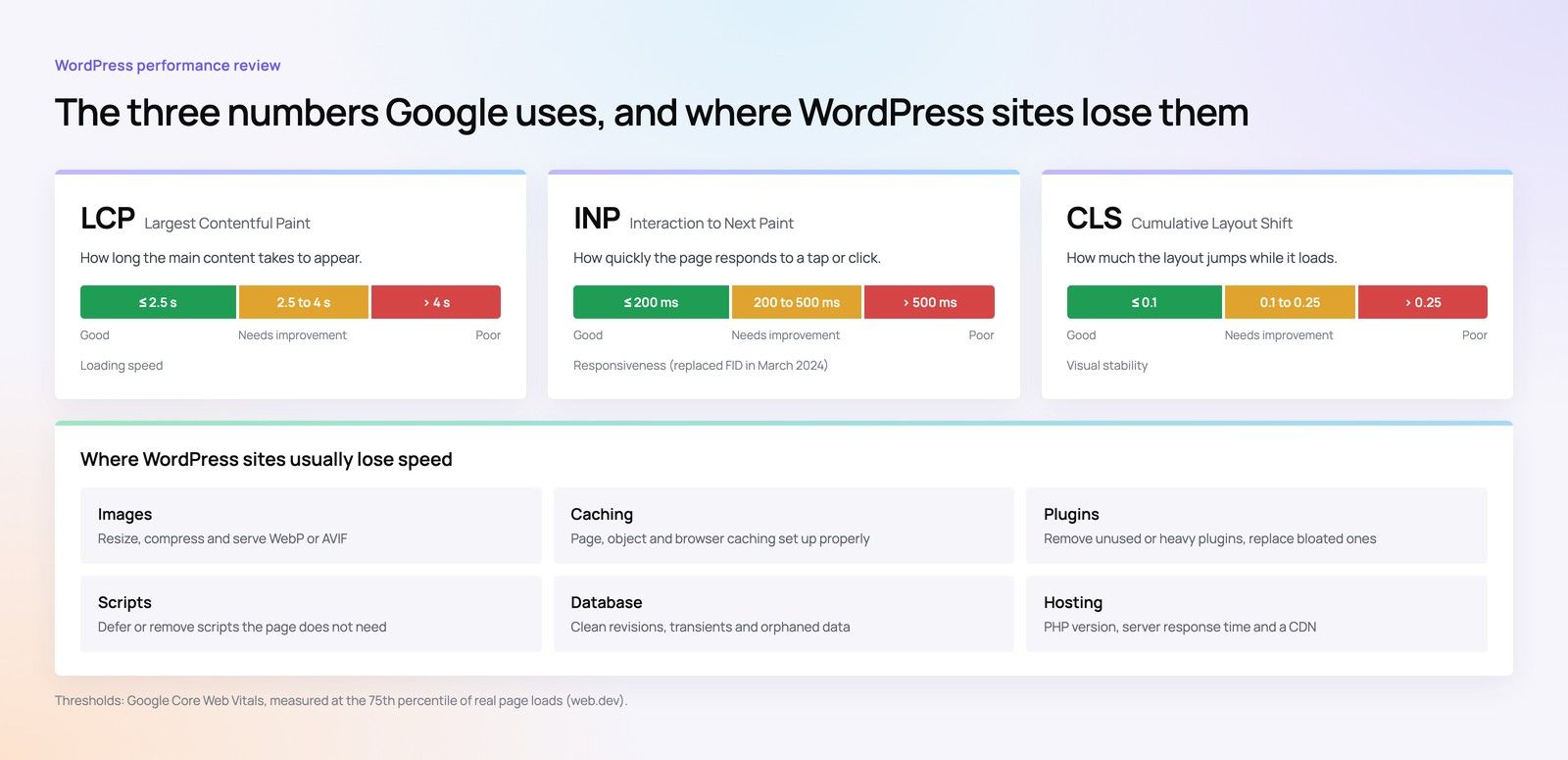
Google's Core Web Vitals are a sensible yardstick because they describe what visitors actually feel. A page is considered good when, at the 75th percentile of visits:
- Largest Contentful Paint (LCP) is 2.5 seconds or less. This is when the main content, usually a hero image or headline, appears.
- Interaction to Next Paint (INP) is 200 milliseconds or less. This measures how quickly the page responds to taps, clicks and typing. INP replaced First Input Delay as a Core Web Vital in 2024.
- Cumulative Layout Shift (CLS) is 0.1 or less. This captures how much content jumps around while the page loads.
Step 0: Measure before touching anything
Website speed optimization starts with a baseline. Without one, nobody can say whether a change helped.
Field data first, lab data second
Field data comes from real Chrome users and appears in PageSpeed Insights and Search Console when a site has enough traffic. It reflects a rolling 28 day window, so it changes slowly but tells the truth about real devices and networks. Lab data comes from a single simulated test, such as Lighthouse or GTmetrix. It is ideal for debugging because it is repeatable, but it describes one device on one connection.
Record both for your five or six most important templates: home page, a category or service page, a product or detail page, a blog post and any landing page that receives paid traffic. Test on mobile settings, because that is where most problems show up first. Our guide to what UAE visitors expect on phones explains why the mobile experience deserves priority.
Find the LCP element on each template
Lighthouse names the element that triggers LCP. On most business sites it is a hero image, a slider or a large heading with a web font, and it tells you where steps 2 and 3 should focus.
The fix order at a glance
| Step | What to fix | Effort | Typical impact | Main metric |
|---|---|---|---|---|
| 1 | Server response and caching | Low to medium | High | LCP |
| 2 | The LCP image or element | Low | High | LCP |
| 3 | Render blocking CSS and fonts | Medium | Medium to high | LCP |
| 4 | Third party scripts and plugins | Medium | High | INP, LCP |
| 5 | Layout shifts | Low | Medium | CLS |
| 6 | Remaining images and media | Low to medium | Medium | LCP, data use |
| 7 | Long JavaScript tasks | High | Medium to high | INP |
Treat this as a default order and adjust when measurement shows a different bottleneck.
Step 1: Fix server response and caching
Time to First Byte is the first part of LCP. If the server is slow, everything else waits. Look at the TTFB figure in your test results; if it is consistently high, start here.
Page caching
Most content pages do not change between visitors. Serving a cached HTML copy instead of rebuilding the page on every request is usually the single largest gain on WordPress and similar database driven sites. Check that caching is enabled, that it covers your key templates and that it is not bypassed for every visitor by a cookie or query string.
A content delivery network close to your users
Google's guidance notes that slow TTFB often comes from redirects or from requests that bypass CDN edge caches. A CDN with points of presence in or near the Gulf shortens the distance for UAE visitors. Confirm that HTML, not just images, is cached at the edge where it is safe to do so, and that marketing parameters such as campaign tags do not create a fresh cache miss for each ad click.
Redirect chains and hosting limits
Remove redirect chains on URLs linked from ads and social profiles. If the server itself is underpowered, caching only hides the problem and a hosting review may be needed.
How to confirm it worked: TTFB drops on repeat lab tests, and LCP falls by a similar amount.
Step 2: Fix the LCP image or element
Once the server responds quickly, the main image usually becomes the bottleneck. This step is low effort and often produces the clearest improvement in page speed.
- Never lazy load the LCP image. Google's own guidance is explicit on this. Lazy loading tells the browser to wait, which is the opposite of what the hero image needs. Many themes and plugins apply lazy loading to every image by default, so check the hero specifically.
- Add fetchpriority="high" to the LCP image. This tells the browser to fetch it ahead of less important resources. Use it on one or two images at most.
- Serve the right size. A hero image exported for a large desktop monitor is wasted on a phone. Responsive image markup lets the browser choose a suitable file.
- Use a modern format and sensible image compression. WebP and AVIF typically produce much smaller files than older JPEG and PNG exports at similar visual quality.
- Avoid sliders as the LCP element. They load several images and scripts before the first slide shows.
If the LCP element is text rather than an image, the bottleneck is usually a web font or CSS, which is step 3.
Step 3: Remove render blocking CSS and font delays
Large stylesheets and synchronous scripts in the page head stop the browser painting until they have downloaded and run, a common issue on sites built with heavy themes or page builders.
What to change
- Remove stylesheets for features the page does not use, such as slider or form styles loaded site wide.
- Inline only a small amount of critical CSS for content above the fold and defer the rest.
- Limit web fonts to the weights you actually use, host them on your own domain where licensing allows, and use a font display setting that shows fallback text immediately.
- For bilingual sites, load Arabic font files only on Arabic pages rather than on every page.
How to confirm it worked: First Contentful Paint and LCP both improve, and the filmstrip in your testing tool shows content appearing earlier.
Step 4: Audit third party scripts and plugins
Chat widgets, heatmaps, duplicate analytics tags, review badges and abandoned testing snippets add up quickly. Each competes for the main thread, which hurts INP as well as loading.
A simple audit
- List every script that loads, including those added through a tag manager.
- Name an owner for each. If nobody owns it, it is a candidate for removal.
- Ask whether it needs to load on every page. A booking widget may only be needed on the contact page.
- Delay non essential scripts until after the page is interactive or until the user scrolls or clicks.
- On WordPress, deactivate and remove plugins that duplicate features or are no longer used.
Hypothetical example: a Dubai retailer's product pages load a live chat widget, two analytics tags, a review carousel and a tracking pixel from a campaign that ended months ago. Removing the old pixel and delaying the chat widget until the visitor scrolls reduces main thread work without losing any data the team actually uses.
Step 5: Stop layout shifts
Layout shift is frustrating for visitors and usually quick to fix. The common causes are predictable:
- Images and videos without width and height attributes, so the browser cannot reserve space.
- Cookie banners, promotional bars or chat buttons that push content down after it has appeared.
- Web fonts that swap in with very different sizes from the fallback font.
- Ads or embeds injected into the page without a fixed container.
Set dimensions on every media element, reserve space for banners and embeds, and display notices as overlays. Recheck CLS on mobile.
Step 6: Compress and resize the rest of the media
Images further down the page rarely affect LCP, but they consume data on mobile networks.
- Lazy load images below the fold, which is now supported natively in browsers.
- Batch convert the media library to modern formats where your platform supports it.
- Replace autoplay background videos with a poster image and play on demand, or compress them heavily and keep them short.
Step 7: Break up long JavaScript tasks
This is the highest effort step, so it comes last. If INP is still poor after removing unnecessary scripts, the problem is usually the site's own code doing too much work on each interaction.
What developers look for
- Long tasks in the browser's performance panel that run when a user taps a menu, filter or add to cart button.
- JavaScript that loads on every page but is only needed on one.
This step needs a developer who knows the codebase. Our guide on building speed in during development covers how to stop the same problems returning.
Platform notes
| Platform | Where to look first |
|---|---|
| WordPress | Page caching, plugin count, page builder CSS, theme scripts. See the WordPress speed checklist. |
| Shopify | Installed apps that inject scripts, theme sections, hero media and image sizes. |
| Custom or headless | Server rendering and caching strategy, bundle size, API response times. |
Keeping the gains after the fixes
Speed decays as new plugins, tags and larger images creep in. A few habits protect the work:
- Agree a simple performance budget, such as a maximum page weight and script count for key templates.
- Retest key templates after each release or campaign launch.
- Watch the Core Web Vitals report in Search Console monthly, remembering that field data trails changes by several weeks.
If you are weighing whether to fix an old site or rebuild it, our breakdown of where development hours go helps frame that decision.
Get a clear fix list for your site
Codeeo's team reviews live sites, identifies the real bottleneck on each key template and fixes issues in the order that moves Core Web Vitals fastest. That work covers WordPress, Shopify and custom builds, and our Dubai office means UAE clients can sit down with the team to go through findings.
Start with a speed optimisation quick start, learn more about our Core Web Vitals service or see our WordPress development work. When you are ready, contact the team with the URLs that matter most.
Frequently asked questions
Search Console uses field data from real Chrome users collected over a rolling 28 day period.
After you deploy fixes, lab tests improve immediately, but the field figures change gradually as older visits age out of the window. Expect to wait roughly a month before the report fully reflects the new performance, and longer for pages with low traffic, which may only show grouped data for similar URLs.
Web DevelopmentWordPress VIP or Self Hosted Enterprise WordPress in the UAEWordPress VIP or self hosted enterprise WordPress in the UAE: compare data residency, hosting SLA, cost drivers and code review rules, plus key setup notes. Web DevelopmentWhat a WordPress Maintenance SLA Should CoverWhat WordPress maintenance services should cover in writing: core and plugin updates, security, backups, multilingual publishing support and response times.
 Web DevelopmentWordPress Release Management: Staging, QA and RollbackA WordPress deployment workflow that releases safely: Git based builds, a staging site that mirrors live, smoke tests to run and a rollback plan written first.
Tell us what the business needs. We will tell you what to build first.
Schedule a free consultation and get a written recommendation, with costs, before you commit to anything.
Get in touchPROVEN RESULTS
4.7 / 5verified reviews on Google