 Web DevelopmentWordPress VIP or Self Hosted Enterprise WordPress in the UAEWordPress VIP or self hosted enterprise WordPress in the UAE: compare data residency, hosting SLA, cost drivers and code review rules, plus key setup notes.
WooCommerce at Scale: Performance and Security Checklist
WooCommerce performance and security checklist for large stores: HPOS migration, product search, checkout caching, card testing controls and admin hardening.
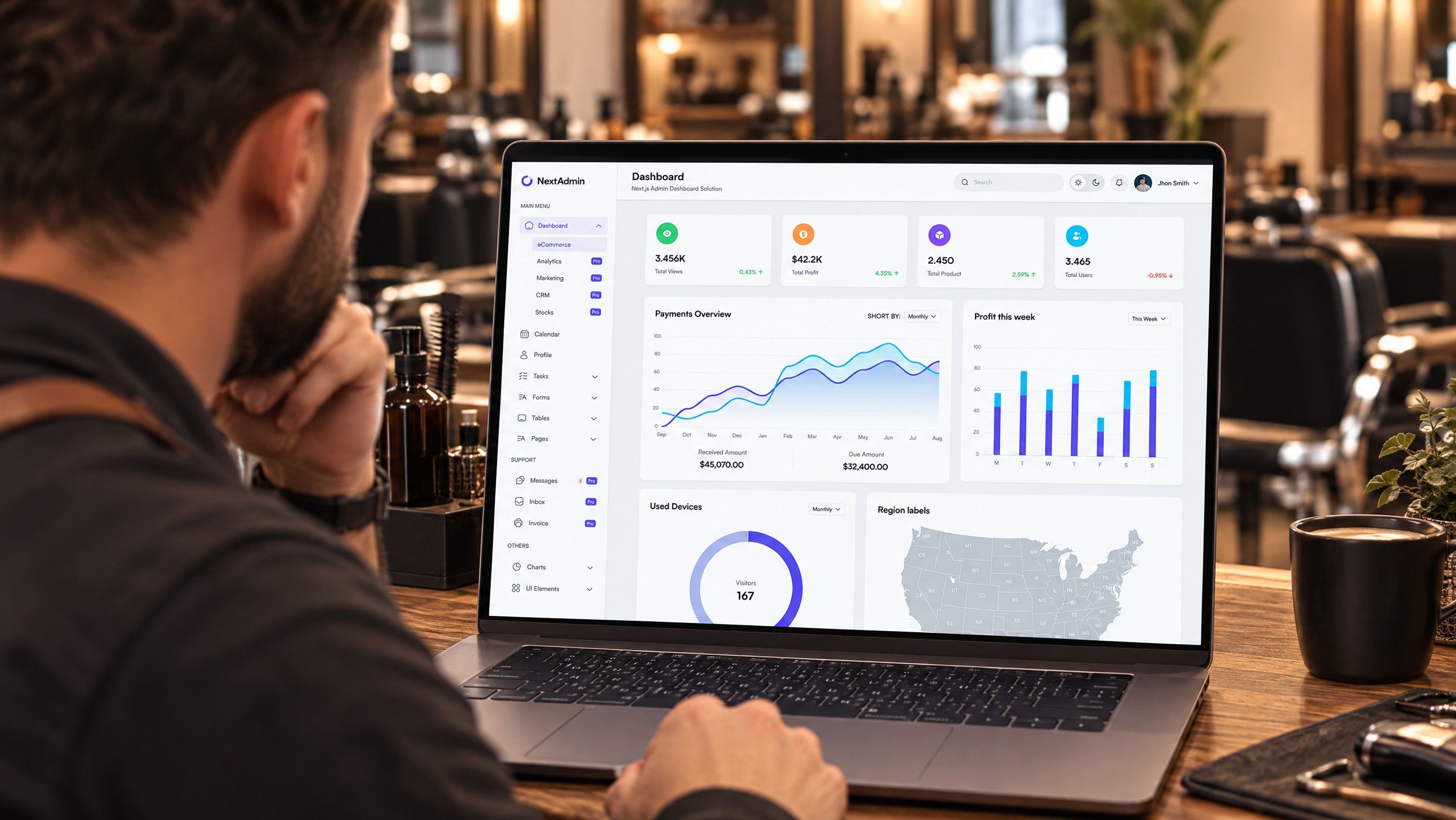
WooCommerce performance at scale depends on a handful of decisions that matter little on a small shop: how orders are stored, how product search runs, what is cached around the cart and checkout, and how background jobs are handled. Security changes too, because a large store attracts card testing, credential stuffing and bot traffic. This checklist covers both for stores past tens of thousands of orders or products.
Signs your store has outgrown its original setup
Large WooCommerce stores rarely fail suddenly. They slow down in specific places first:
- The orders screen and reports take a long time to load, or time out.
- Product search and filtered category pages get slower as the catalogue grows.
- Checkout slows down during sales, while the rest of the site seems fine.
- Scheduled tasks, such as emails, stock syncs and ERP exports, pile up.
- Imports and bulk edits lock the database and slow the storefront.
Each symptom points to a different layer. Work through the checklist in order rather than reaching for a bigger server first.
WooCommerce performance checklist: data and database
Move orders to HPOS
High Performance Order Storage, or HPOS, stores orders in dedicated database tables instead of the general WordPress posts and post meta tables. According to the WooCommerce developer documentation, it became stable and the default for new installations from WooCommerce 8.2, and it is designed for scalability and reliability.
Older stores may still be on the legacy posts storage. Moving a large store needs care:
- Audit plugin compatibility. WooCommerce shows a warning for extensions that have not declared HPOS compatibility. Custom code that reads orders directly from post meta must be rewritten to use WooCommerce order functions.
- Turn on compatibility mode. This keeps the old and new tables in sync while you test.
- Let synchronisation finish before switching. WooCommerce blocks the switch while orders are pending sync.
- Test on staging with a copy of production data, including payment, refunds, subscriptions and any ERP or shipping integration.
- Switch, monitor, then turn off sync once you are confident, so writes are not duplicated.
Keep the database lean
- Clear expired transients and old sessions on a schedule.
- Review the autoloaded options. Plugins that store large data as autoloaded options slow every request.
- Prune completed scheduled actions so their log tables do not grow without limit.
- Check that custom queries use indexed columns. A slow query log on staging reveals the worst offenders.
- Run a persistent object cache, such as Redis, so repeated queries are served from memory.
Separate heavy jobs from shopper traffic
WooCommerce uses Action Scheduler for background work. On a large store, run its queue from a real server cron job rather than relying on visitor traffic to trigger it, and schedule big imports, catalogue syncs and report generation outside peak shopping hours. For integration patterns, see our guide to WooCommerce ERP, CRM and shipping integration.
Search and catalogue performance
Default WordPress search runs text matching queries against the database. With a large catalogue, many attributes and layered filters, those queries become slow and the results less relevant.
Options for a large catalogue
| Approach | Suits | Trade off |
|---|---|---|
| Optimised database search with better indexing | Mid sized catalogues with simple filters | Limits on relevance and typo tolerance |
| Dedicated search engine, such as Elasticsearch or OpenSearch | Large catalogues, many filters, multiple languages | Another service to host, sync and monitor |
| Hosted search service | Teams that want strong relevance without running servers | Ongoing subscription and data sync to a third party |
Whichever you choose, keep filter counts and faceted navigation off the database where possible, and limit the number of crawlable filter combinations so search engines do not spend effort on thousands of near duplicate URLs.
Product data hygiene
- Large numbers of variations per product slow both the admin and the product page. Consider splitting very large variable products.
- Serve product images in modern formats at the right sizes, and do not let the theme load full size originals in listings.
- Remove unused attributes and terms left behind by old imports.
Caching around cart and checkout
Category and product pages can be page cached for anonymous visitors. Cart, checkout and account pages cannot, and the cookies WooCommerce sets must bypass the cache. The WooCommerce guidance on configuring caching plugins lists the pages and cookies to exclude, including woocommerce_items_in_cart and wp_woocommerce_session_. Our article on WordPress caching layers explains the page, object and edge setup in more detail.
Make the uncached pages fast
- Trim checkout plugins. Every upsell, field editor and tracking script added to checkout runs on an uncached page. Keep only what earns its place.
- Watch cart fragments and mini cart requests. Background requests that refresh the cart count on every page can add load. Modern themes and the block based cart handle this more efficiently; test what your theme does.
- Load payment scripts only where needed. Gateway JavaScript belongs on checkout and payment pages, not on every product page.
- Keep the order flow light. Move slow actions, such as ERP pushes or marketing syncs, to background jobs instead of running them while the customer waits for the confirmation page.
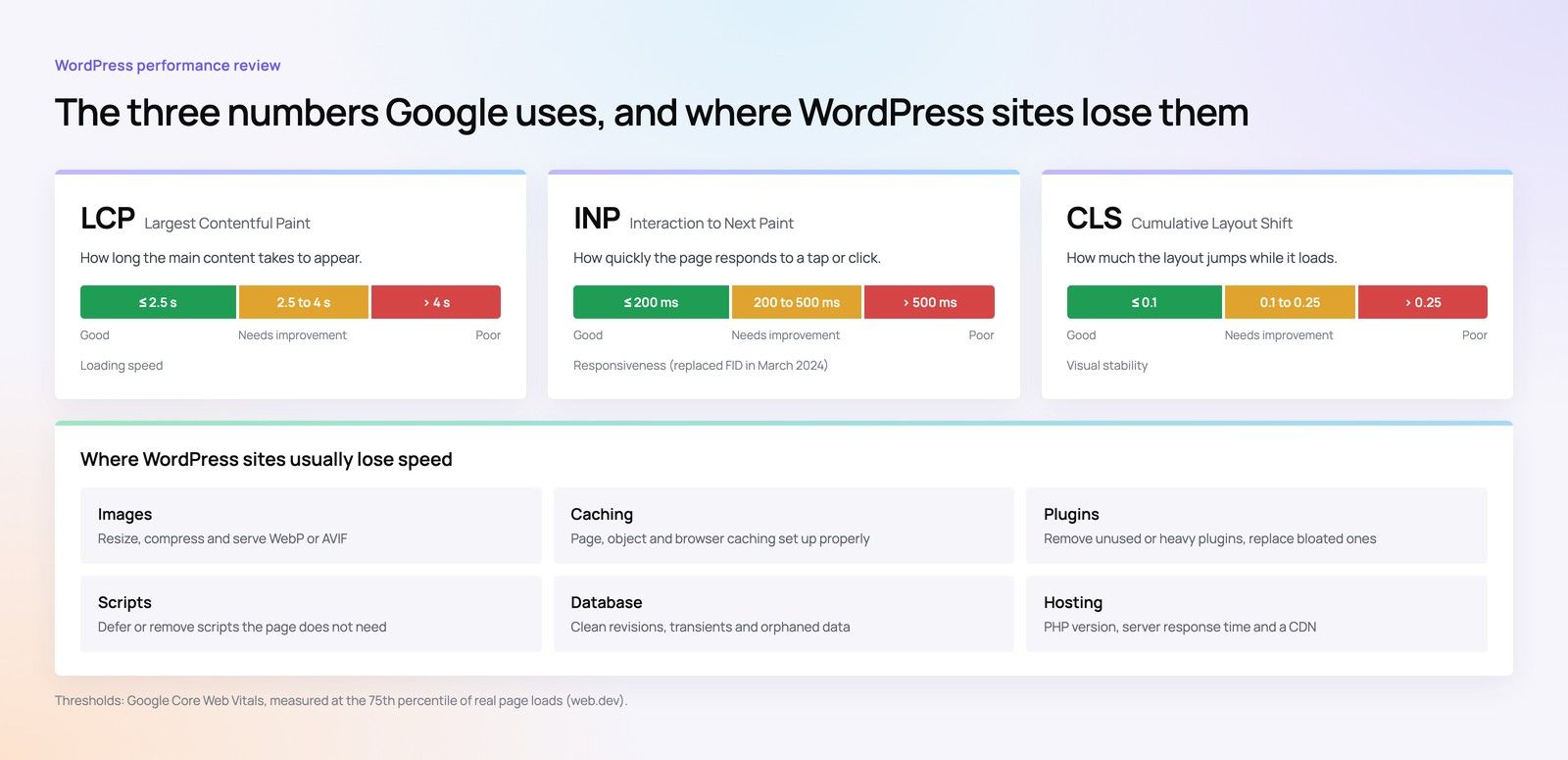
For front end speed work on the cached pages, our WordPress speed checklist for Core Web Vitals covers images, fonts and scripts.
Prepare for sales peaks
Sales events in the UAE, such as Ramadan, White Friday and the year end shopping season, concentrate traffic into short windows. Before a major promotion, load test checkout on staging, warm the cache for key pages, pause heavy imports and confirm your host can scale PHP workers and database capacity for the period.
WooCommerce security checklist for large stores
WooCommerce security follows the same baseline as any WordPress site, set out in our guide to WordPress security hardening. A large store adds risks tied to payments, customer accounts and stored personal data.
Fraud and card testing controls
Card testing is when attackers use a checkout to try many stolen card numbers with small orders. It creates failed payment noise, can lead to disputes and may cause a payment provider to review the account.
- Use the fraud tools your payment gateway provides and review its rules with the provider.
- Add rate limiting on checkout and on the payment endpoints, at the firewall or CDN.
- Use a bot challenge on checkout when unusual patterns appear, rather than on every visit.
- Monitor failed payment counts and alert on sudden spikes.
- Prefer hosted or tokenised payment fields, so card data does not touch your server. Confirm your obligations with your payment provider.
Payment setup itself is specialist work; see Codeeo's payment integration service if you are adding or changing gateways.
Customer account protection
- Rate limit login and password reset requests to slow credential stuffing.
- Block account creation spam with a challenge on the registration form.
- Avoid revealing whether an email address has an account in error messages.
Admin hardening
- Least privilege roles. Shop managers handle orders and products; few people need full administrator rights.
- Two factor authentication for every account that can see orders or customer data.
- Restrict admin access by IP or a second authentication layer where your team works from fixed locations.
- Disable the theme and plugin file editor and keep plugins to a reviewed list.
- Review API keys. WooCommerce REST API keys used by integrations should have the minimum permissions needed and be revoked when a supplier relationship ends.
- Audit logs for changes to orders, prices, users and settings.
Customer data and UAE privacy rules
A large store holds names, addresses, phone numbers and order histories. In the UAE, the Personal Data Protection Law (Federal Decree-Law No. 45 of 2021) sets general rules for processing personal data, while the DIFC and ADGM have their own data protection regimes. Keep only the data you need, restrict who can export it, and confirm your specific obligations with legal counsel.
Hypothetical example: a UAE electronics store sees hundreds of failed small orders overnight from rotating IP addresses. A CDN rate limit on the checkout endpoint, a challenge triggered by repeated payment failures and a gateway fraud rule stop the pattern, while normal customers check out without extra steps.
Hosting and infrastructure for a large WooCommerce store
Infrastructure comes after the checklist above, not before it, but at scale it does matter. When you review hosting, look at the parts that limit WooCommerce specifically:
- PHP workers. Uncached requests, such as cart and checkout, each need a worker. Too few workers means queued shoppers during a sale, however fast each request is.
- Database capacity. Memory and storage speed on the database server affect order writes, admin screens and reports.
- Staging that mirrors production. Testing HPOS, plugin updates and checkout changes is only useful on an environment with the same versions and realistic data.
- Backups you have restored. For a store, the order data written since the last backup is the hardest thing to recover. Confirm how often the database is backed up and test a restore.
- Data location. If you have contractual or regulatory reasons to keep customer data in a particular country, check where the host and any search or backup services store it.
Monitoring that catches problems early
- Application performance monitoring that shows slow queries and slow plugins by request.
- Uptime and checkout transaction checks that place a test order path, not just load the homepage.
- Alerts on failed payments, scheduled action backlog and PHP errors.
- A monthly review of plugin updates, with testing on staging before production.
If the store is reaching the limits of a traditional theme, read headless or traditional WordPress before planning a rebuild; many performance problems are fixed without changing architecture.
Scaling your WooCommerce store with Codeeo
Codeeo's WooCommerce developers work on HPOS migrations, search, checkout performance, integrations and admin hardening for growing stores, and our ecommerce development team builds new stores on WooCommerce, Shopify and headless setups. Codeeo has delivered 200+ projects across the UAE and the US, and UAE clients can meet the team at our Dubai office. Get in touch to discuss your store.
Frequently asked questions
It is designed for existing stores as well as new ones, but safety depends on your extensions and custom code.
Check that every plugin declares compatibility, test with compatibility mode and synchronisation on a staging copy, and verify payments, refunds and integrations. Code that queries order data directly in post meta is the most common cause of problems and needs updating before the switch.
Web DevelopmentWordPress VIP or Self Hosted Enterprise WordPress in the UAEWordPress VIP or self hosted enterprise WordPress in the UAE: compare data residency, hosting SLA, cost drivers and code review rules, plus key setup notes. Web DevelopmentWhat a WordPress Maintenance SLA Should CoverWhat WordPress maintenance services should cover in writing: core and plugin updates, security, backups, multilingual publishing support and response times.
 Web DevelopmentWordPress Release Management: Staging, QA and RollbackA WordPress deployment workflow that releases safely: Git based builds, a staging site that mirrors live, smoke tests to run and a rollback plan written first.
Tell us what the business needs. We will tell you what to build first.
Schedule a free consultation and get a written recommendation, with costs, before you commit to anything.
Get in touchPROVEN RESULTS
4.7 / 5verified reviews on Google